After showing off our project today, I am actually pretty proud of how it turned out. Our group worked really well together and we all agreed it was the smoothest group project for all of us this semester.
I am graduating this semester and thought it was super cool to be able to combine different ideas and concepts learned from other TAM classes. I loved being able to take our idea and turn it into a real life, working ‘thing’. We all are the creative types, and this project allowed us to think about art in a new way and work to problem solve.
With the help of our lovely TA’s we learned about how to incorporate data from the internet into our code and we dived deeper into images/arrays and how to alter them.
Our group consists of four makers, creatives, and artists. We are all versed in different mediums and crafts – from photography and videography to graphic design and illustration. This class and this final project challenged us to create with new constraints and in a new way – through code.
Using inspiration from former TAM classes, and our knew programming knowledge, we created an “app” that would allow users to create glitch art. Glitch art is a genre we have discussed in our other TAM classes, and this project challenged us to integrate our knowledge of other classes, creating an interdisciplinary final project.
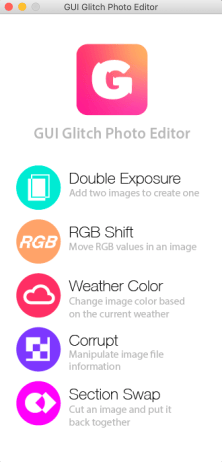
This is our interface, made to look like a phone app.
Some of the images produced by classmates during the final demo presentation.
Demo Video
User’s Guide
This code was written to function similarly to an application you would find on an app store. Therefore, the user flow should be pretty self-explanatory.
Click-ing on one of the filter options, (for example: RGB shift) prompts the user to choose an image file. The code executes the filter and returns the altered image back to the user. We have provided a folder of sample images to use for testing purposes.
However, there is one filter specific caveat for the double exposure filter: The user is prompted to choose *two* images to make the double exposure instead of one. These images must have the exact same aspect ratio as well as be the exact same pixel length on each side for this filter to work.
Download the entire guiGlitchSubmission folder and select the media folder when it asks for media. We also have included a folder of small-sized sample images to use!
Errata – What’s Broken?
Double Exposure – In order to successfully execute the double exposure filter, one must use pictures of the *exact* same size. Ideally, we would like this filter to work with pictures that are the same aspect ratio but may be different sizes.
RGB Shift – We are satisfied with this code.
Weather Color – We are satisfied with this code.
Corrupt – We are satisfied with this code.
Section Swap – This code swaps the exact same sections every time, and it’s not very random or glitchy. We would like to improve this code to be able to switch different sections randomly to make it look a bit more glitchy.
Thanks to office hours and Mckenzie, our RGB glitch has been solved and the API-altered image makes more sense.
After spending quite a bit of time brainstorming with Mckenzie, we figured out a much simpler way to execute the separation of the RGB channels of an image. We separated out the different color channels of an image, blended the pixels like the example in the book, and offset the different colors by changing their x and y values.
This is the new code:
#RGB SHIFT GLITCH

#Picture
picture = makePicture(pickAFile())
width = picture.getWidth()
height = picture.getHeight()
redImg = []
blueImg = []
greenImg = []

#Description: This code take an image and shifts the RGB channels in different directions.
# Leave Red in place
# Shift Blue up/left
# Shift Green down/right
for x in range(width):
  redImg.append([])
  blueImg.append([])
  greenImg.append([])
  for y in range(height):
    redImg[x].append([])
    blueImg[x].append([])
    greenImg[x].append([])

for x in range(width):
  for y in range(height):
    pixel = getPixel(picture, x, y)

    redImg[x][y] = getRed(pixel)
    greenImg[x][y] = getGreen(pixel)
    blueImg[x][y] = getBlue(pixel)

for x in range(width):
  for y in range(height):
    rPixel = redImg[x][y]
    bPixel = blueImg[x-50][y-50]
    gPixel = greenImg[x - 100][y - 100]

    newR = rPixel
    newG = gPixel
    newB = bPixel
    color = makeColor(newR, newG, newB)
    setColor(getPixel(picture, x, y), color)


explore(picture)
Examples of images I’ve glitched:
Mckenzie also explained how to go about altering an image using current temperature data. This is just the beginning of that, pulling in our specific data and value we want to use:
import urllib
import simplejson as json

#API WEATHER GLITCH
#Description: This is the starting point for creating our API weather-based glitch.
#It currently uses a yahoo url to grab the current temperature and prints out that value, which we can then use to alter our photographs.
url = "https://query.yahooapis.com/v1/public/yql?q=select%20*%20from%20weather.forecast%20where%20woeid%20in%20(select%20woeid%20from%20geo.places(1)%20where%20text%3D%22boulder%2C%20co%22)&format=json&env=store%3A%2F%2Fdatatables.org%2Falltableswithkeys"
response = urllib.urlopen(url)
data = json.loads(response.read())
print data['query']['results']['channel']['item']['condition']['temp']
We have learned a lot about how to code and specifically in the realm of GUIs and photography. Using this knowledge we will tamper create a platform/app that will allow users to tamper with imagery and create glitch art. Glitch art is a topic discussed in many of our other TAM classes, but we have never used code to alter our photographs. This project will cross the multiple disciplines and allow us to integrate our knowledge from other classes.
“For a more creative brain, embrace constraints.”
We are all makers in our group of some sort – photography, illustration, design, etc. This project creates new limits for us to play with and learn to use to create and make art.
Our Team
We will all collaborate on the bulk of this project, but some of us will lead in certain aspects.
Evan Gustafson – will serve as the “creative director” and will guide the overall look and feel
Danny Anderson – will guide the group in types of glitch art and how to navigate that in the code
Molli Nava – will guide the user interface design
Katie Dawe – will guide the user interaction design
Work Plan
We will create a GUI that allows users to create glitch art out of their chosen photos/ This GUI will take photos and be able to glitch them in five different ways, manipulating pixels and the RGB color channels in these ways:
Shift each color channel to create a layered effect (similar to taking of 3D glasses)
Switch sections of pixels with others to create a. cut-up effect
Create a double exposure image out of two images from the user
Switch color channel data to create negative based on current/daily weather data (temperatures)
Process:
We will first create an outline that describes the functions needed to create each filter/glitch type.
We will then work on coding the functions and then figure out how to allow the user to interact.
We will design the GUI window and fix bugs.
And of course, we will seek help out from the super super TA’s throughout!
Schedule
Wednesdays from 6-8pm
Fridays from 8-11am (with lab)
What do we need to learn?
We need to learn different methods of glitching imagery and how to manually do that using Python. We also need to learn how to allow the user to interact with this process and create a window that feels like a well-designed application.