I am so stinking proud of our final product. For the first time, I actually felt comfortable coding. Also, It was helpful to write code for something that I could really connect to, like our mobile app UI. During this product, I learned how to include graphics and use them as buttons in our code. This gave us more flexibility in terms of how we designed our product. My initial code was a nightmare that didn’t actually work, but with the help of our TAs, I was able to make a working GUI and connect all of our filters into one screen. This does a great job of showing what I learned because in the end my work actually could run correctly. I think I still feel unconfident in anticipating code and knowing where to start. Almost like code writer’s block. Overall this project was a major success. I will most likely use our work in my design portfolio and website.
Update on Weather API
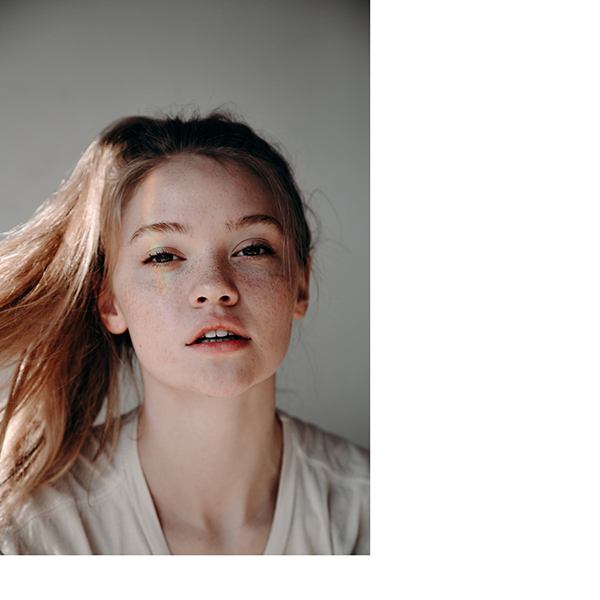
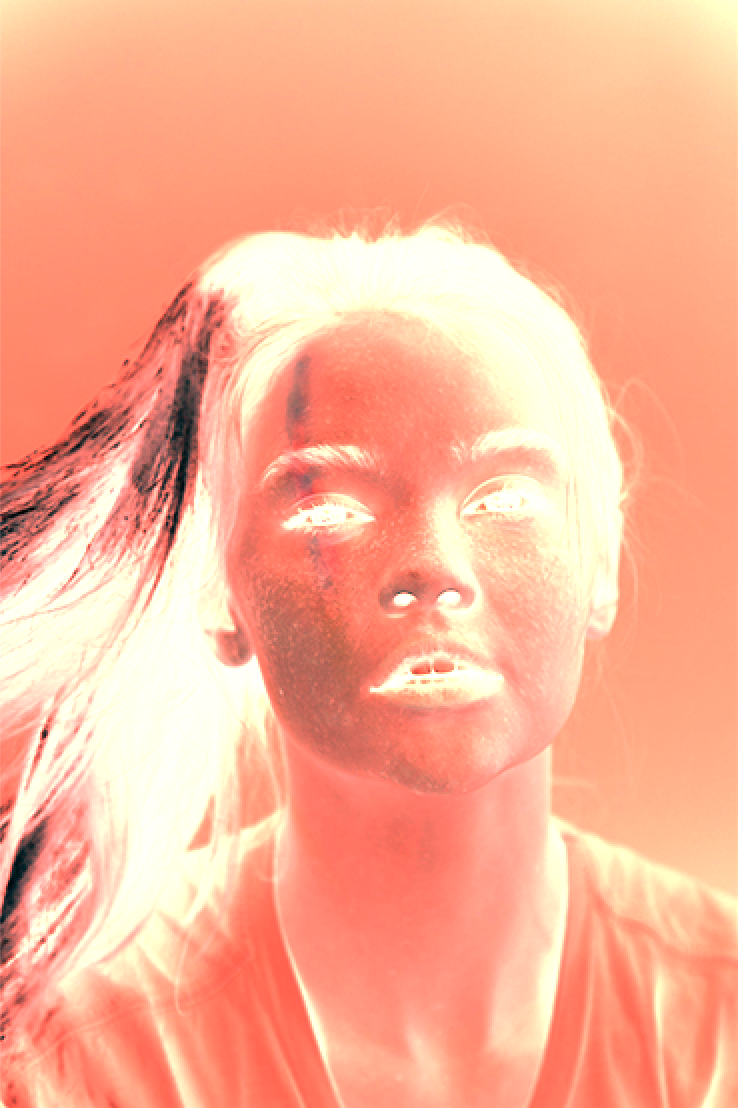
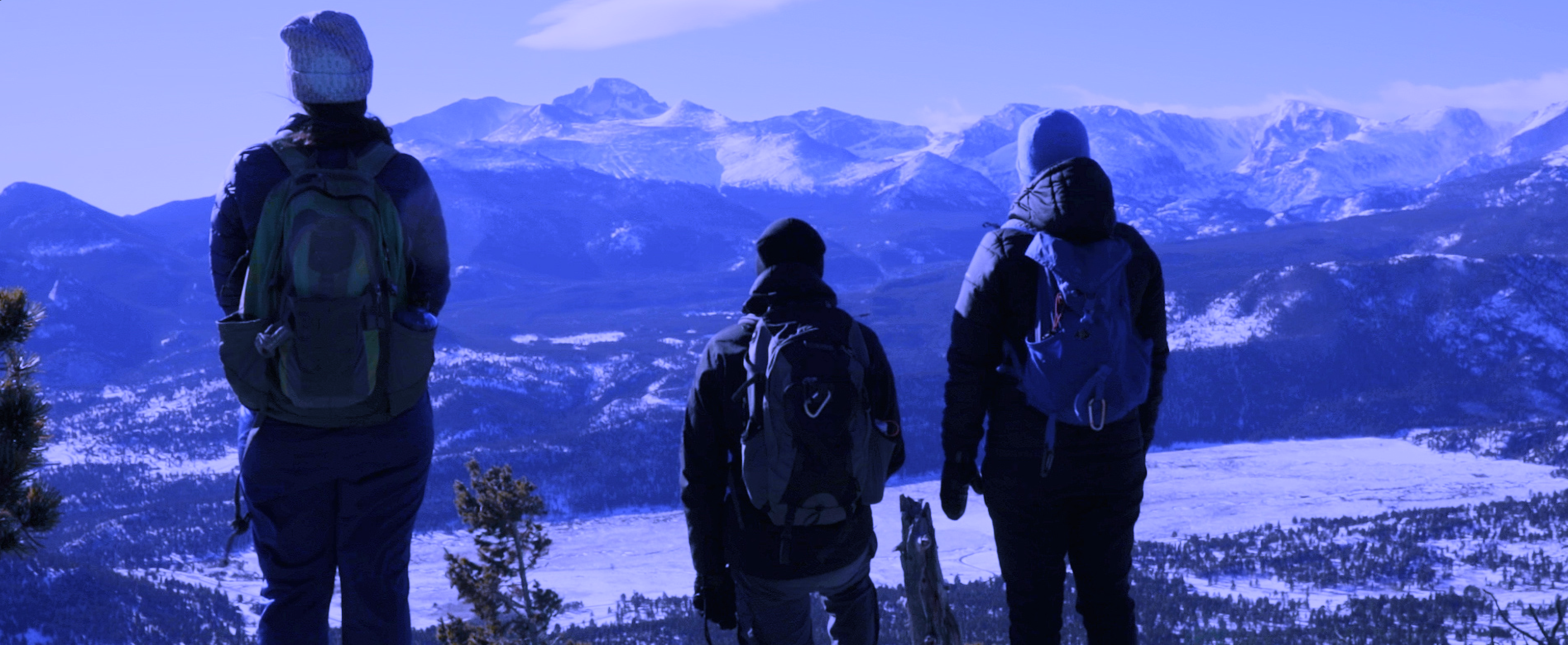
At the end of last week, I worked more on the Weather shift filter. Since the filters in our app are supposed to have some sort of unusual “glitch” we decided it would be good to not only shift the color temperature of images based on the current temperature, but to do it while also inverting the colors in the entire image.
One of the images with the filter applied (current temperature (47 degrees).
Reflection – Molli
After showing off our project today, I am actually pretty proud of how it turned out. Our group worked really well together and we all agreed it was the smoothest group project for all of us this semester.
I am graduating this semester and thought it was super cool to be able to combine different ideas and concepts learned from other TAM classes. I loved being able to take our idea and turn it into a real life, working ‘thing’. We all are the creative types, and this project allowed us to think about art in a new way and work to problem solve.
With the help of our lovely TA’s we learned about how to incorporate data from the internet into our code and we dived deeper into images/arrays and how to alter them.
Final Group Post
Artist’s Statement
“For a more creative brain, embrace constraints.”
Our group consists of four makers, creatives, and artists. We are all versed in different mediums and crafts – from photography and videography to graphic design and illustration. This class and this final project challenged us to create with new constraints and in a new way – through code.
Using inspiration from former TAM classes, and our knew programming knowledge, we created an “app” that would allow users to create glitch art. Glitch art is a genre we have discussed in our other TAM classes, and this project challenged us to integrate our knowledge of other classes, creating an interdisciplinary final project.
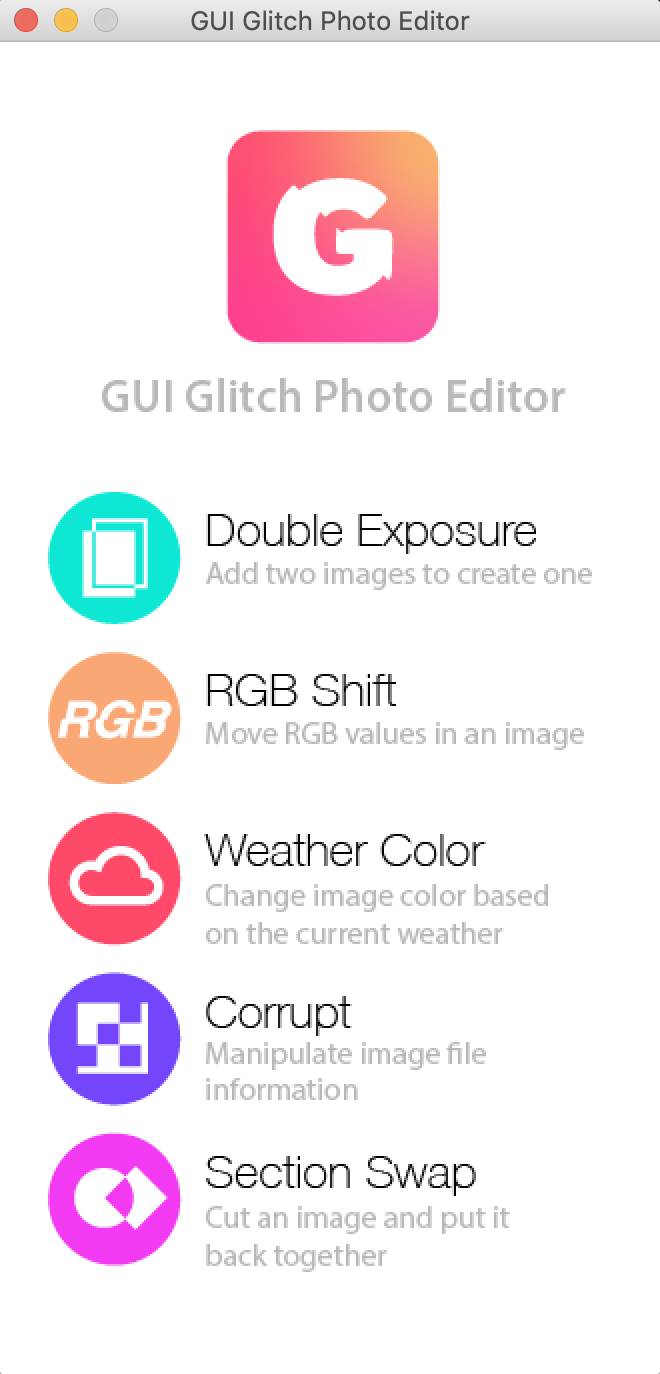
This is our interface, made to look like a phone app.


Some of the images produced by classmates during the final demo presentation.
Demo Video
User’s Guide
This code was written to function similarly to an application you would find on an app store. Therefore, the user flow should be pretty self-explanatory.
Click-ing on one of the filter options, (for example: RGB shift) prompts the user to choose an image file. The code executes the filter and returns the altered image back to the user. We have provided a folder of sample images to use for testing purposes.
However, there is one filter specific caveat for the double exposure filter: The user is prompted to choose *two* images to make the double exposure instead of one. These images must have the exact same aspect ratio as well as be the exact same pixel length on each side for this filter to work.
Code/Repository
Download the entire guiGlitchSubmission folder and select the media folder when it asks for media. We also have included a folder of small-sized sample images to use!
Errata – What’s Broken?
Double Exposure – In order to successfully execute the double exposure filter, one must use pictures of the *exact* same size. Ideally, we would like this filter to work with pictures that are the same aspect ratio but may be different sizes.
RGB Shift – We are satisfied with this code.
Weather Color – We are satisfied with this code.
Corrupt – We are satisfied with this code.
Section Swap – This code swaps the exact same sections every time, and it’s not very random or glitchy. We would like to improve this code to be able to switch different sections randomly to make it look a bit more glitchy.
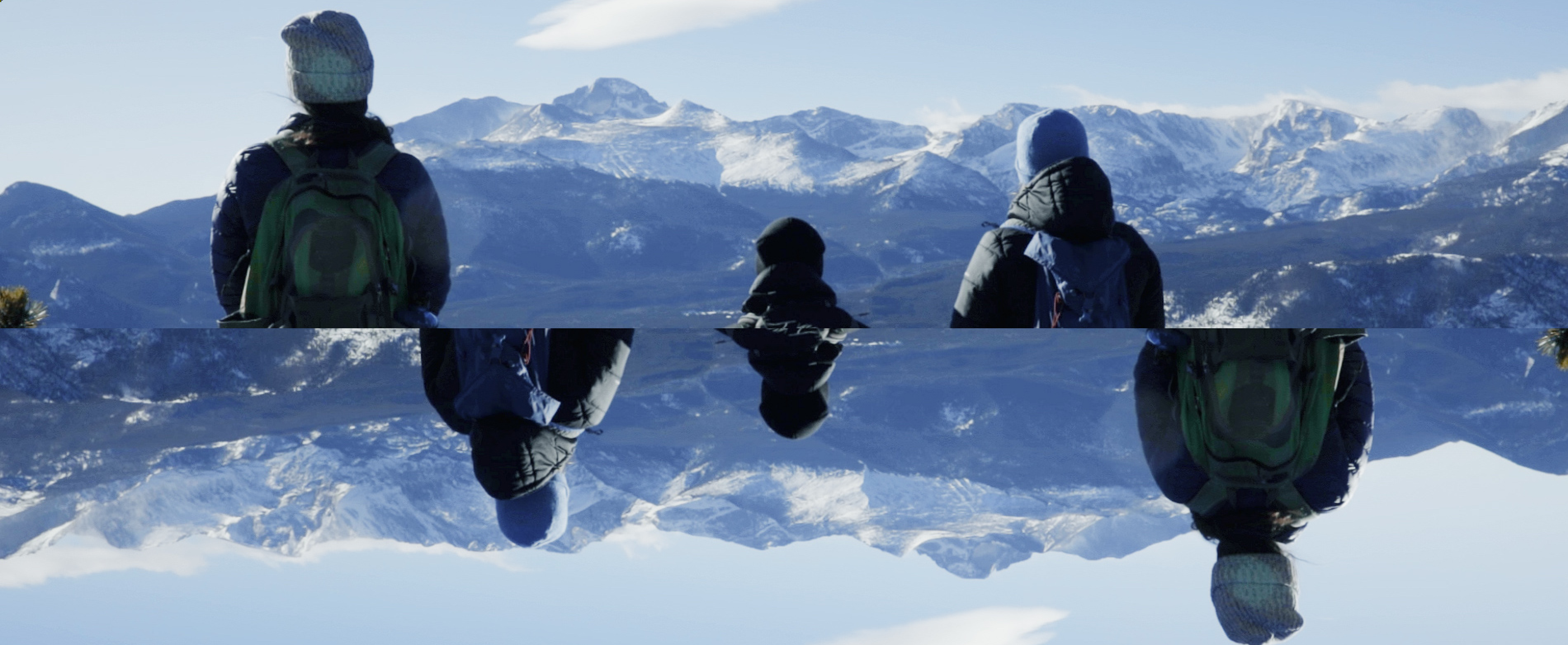
Update to Danny’s “Mirror Filter”
In our final lab on December 7th, we were putting the final touches on all our filters and compiling them into one code file. Danny had written what he called the “Mirror Filter” which was eventually to be the section swap filter in our final. I thought that it could be a little glitchier, so while he and Molli were discussing how to make the weather filter be a bit more glitchy, I went and edited his code just a small bit. Instead of mirroring the top into the bottom, now it cuts the image into 4 different sections. On a picture with a square aspect ratio, the middle section is largest and basically unchanged, the bottom section is the second largest and flipped, and the top two sections are the smallest and one is upright and the other is flipped. On a picture with a rectangular aspect ratio, it does the same thing but also cuts some sections vertically instead of horizontally. I just changed the target to divide by 4 and subtract 1 each time instead of the target subtracting 1.
Evan 12/7 Assembled UI + Code
Here is our code with all the filters added to complete GUI.
#GUI GLITCH TEAM, December 2018
#Danny Anderson, Molli Nava, Katie Dawe, Evan Gustafson

import gui
from gui import *

#For RGB Shift
import random

#For Weather API
import urllib
import simplejson as json

#Picture
picture = None

filePath = None


#
#
#
#
def setUp():
  global filePath
  setUpMediaPaths()
  window = Display("GUI Glitch Photo Editor", 332, 667)
  window.add(Icon(filePath + 'GlitchLogoBG.png'), 0, 0)

  exposure = Icon(filePath + 'DoubleExposure.png')
  exposure.onMouseClick(exposureFunction)
  window.add(exposure, 25, 225)

  rgbShift = Icon(filePath + 'rgbShift.png')
  rgbShift.onMouseClick(rgbShiftFunction)
  window.add(rgbShift, 25, 305)

  weatherColor = Icon(filePath + 'WeatherColor.png')
  weatherColor.onMouseClick(weatherFunction)
  window.add(weatherColor, 25, 385)

  corrupt = Icon(filePath + 'CorruptImage.png')
  corrupt.onMouseClick(corruptFunction)
  window.add(corrupt, 25, 465)

  sectionSwap = Icon(filePath + 'SectionSwap.png')
  sectionSwap.onMouseClick(swapFunction)
  window.add(sectionSwap, 25, 545)


#
#
#
#
def exposureFunction(x,y):

  # Double Exposure
  # In order for this to work, the two pictures uploaded must be EXACTLY the same size
  # I mean, same aspect ratio AND same pixel length on each side
  # Stretch goal: make this code work if the pictures are not exactly the same size

  def doubleExposure():
    choose1 = pickAFile()
    choose2 = pickAFile()
    pic1 = makePicture(choose1)
    pic2 = makePicture(choose2)
    canvas = makeEmptyPicture(getWidth(pic1), getHeight(pic1))
    #copy columns
    overlap = getWidth(pic1)
    sourceX = 0
    for targetX in range(0,getWidth(pic1)):
      sourceY = 0
      for targetY in range(0,getHeight(pic2)):
        pic1Pixel = getPixel(pic1,sourceX,sourceY)
        pic2Pixel = getPixel(pic2, sourceX, sourceY)
        newRed = 0.50*getRed(pic1Pixel)+0.50*getRed(pic2Pixel)
        newGreen = 0.50*getGreen(pic1Pixel)+0.50*getGreen(pic2Pixel)
        newBlue = 0.50*getBlue(pic1Pixel)+0.50*getBlue(pic2Pixel)
        color = makeColor(newRed,newGreen,newBlue)
        setColor(getPixel(canvas,targetX,targetY),color)
        sourceY = sourceY + 1
      sourceX = sourceX + 1
    show(canvas)
    return(canvas)


  doubleExposure()


#
#
#
#
def rgbShiftFunction(x,y):
  filePath = pickAFile()
  picture = makePicture(filePath)

  width = picture.getWidth()
  height = picture.getHeight()
  redImg = []
  blueImg = []
  greenImg = []

  #Description: This code take an image and shifts the RGB channels in different directions.
  # Leave Red in place
    # Shift Blue up/left
  # Shift Green down/right
  for x in range(width):
    redImg.append([])
    blueImg.append([])
    greenImg.append([])
    for y in range(height):
      redImg[x].append([])
      blueImg[x].append([])
      greenImg[x].append([])

  for x in range(width):
    for y in range(height):
      pixel = getPixel(picture, x, y)

      redImg[x][y] = getRed(pixel)
      greenImg[x][y] = getGreen(pixel)
      blueImg[x][y] = getBlue(pixel)

  xShift1 = random.randint(0,100)
  yShift1 = random.randint(0,100)
  xShift2 = random.randint(0,100)
  yShift2 = random.randint(0,100)

  for x in range(width):
    for y in range(height):
      rPixel = redImg[x][y]
      bPixel = blueImg[x-xShift1][y-yShift1]
      gPixel = greenImg[x - xShift2][y - yShift2]

      newR = rPixel
      newG = gPixel
      newB = bPixel
      color = makeColor(newR, newG, newB)
      setColor(getPixel(picture, x, y), color)

  show(picture)


#
#
#
#
def weatherFunction(x,y):
  filePath = pickAFile()
  #API WEATHER GLITCH
  #Description: This is the starting point for creating our API weather-based glitch.
  #It currently uses a yahoo url to grab the current temperature and prints out that value, which we can then use to alter our photographs.
  url = "https://query.yahooapis.com/v1/public/yql?q=select%20*%20from%20weather.forecast%20where%20woeid%20in%20(select%20woeid%20from%20geo.places(1)%20where%20text%3D%22boulder%2C%20co%22)&format=json&env=store%3A%2F%2Fdatatables.org%2Falltableswithkeys"
  response = urllib.urlopen(url)
  data = json.loads(response.read())
  print data['query']['results']['channel']['item']['condition']['temp']


  temperature = data['query']['results']['channel']['item']['condition']['temp']
  print int(temperature)


  def tempShift():
    temperature = int(data['query']['results']['channel']['item']['condition']['temp'])
    condition = data['query']['results']['channel']['item']['condition']['text']

    picture = makePicture(filePath)

    if temperature < 10:
      for p in getPixels(picture):
        red = getRed(p)
        green = getGreen(p)
        blue = getBlue(p)
        negColor = makeColor(255-red, 255-green, 255-blue)
        setColor(p, negColor)

        setRed(p,getRed(p)*1.2)
        setGreen(p,getGreen(p)/1.2)
        setBlue(p,getBlue(p)*9)

    elif temperature in range (11,20):
      for p in getPixels(picture):
        red = getRed(p)
        green = getGreen(p)
        blue = getBlue(p)
        negColor = makeColor(255-red, 255-green, 255-blue)
        setColor(p, negColor)

        setRed(p,getRed(p)*1.3)
        setGreen(p,getGreen(p)*1.2)
        setBlue(p,getBlue(p)*6)

    elif temperature in range (21,30):
      for p in getPixels(picture):
        red = getRed(p)
        green = getGreen(p)
        blue = getBlue(p)
        negColor = makeColor(255-red, 255-green, 255-blue)
        setColor(p, negColor)

        setRed(p,getRed(p)*1)
        setGreen(p,getGreen(p)*1.2)
        setBlue(p,getBlue(p)*4)

    elif temperature > 30:
      for p in getPixels(picture):
        red = getRed(p)
        green = getGreen(p)
        blue = getBlue(p)
        negColor = makeColor(255-red, 255-green, 255-blue)
        setColor(p, negColor)

        setRed(p,getRed(p)*4)
        setGreen(p,getGreen(p)*1.3)
        setBlue(p,getBlue(p)*1)
    show(picture)
  tempShift()


#
#
#
#
def corruptFunction(x,y):
  #Picture
  picture = makePicture(pickAFile())
  width = picture.getWidth()
  height = picture.getHeight()
  redImg = []
  blueImg = []
  greenImg = []

  #Description: This code take an image and shifts the RGB channels in different directions.
  # Leave Red in place
  # Shift Blue up/left
  # Shift Green down/right
  for x in range(width):
    redImg.append([])
    blueImg.append([])
    greenImg.append([])
    for y in range(height):
      redImg[x].append([])
      blueImg[x].append([])
      greenImg[x].append([])

  for x in range(width):
    for y in range(height):
      pixel = getPixel(picture, x, y)

      redImg[x][y] = getRed(pixel)
      greenImg[x][y] = getGreen(pixel)
      blueImg[x][y] = getBlue(pixel)


  for x in range(width):
    for y in range(height):
      xShift1 = random.randint(1,100)
      yShift1 = random.randint(1,100)
      xShift2 = random.randint(1,100)
      yShift2 = random.randint(1,100)
      rPixel = redImg[x][y]
      bPixel = blueImg[x - xShift1][y - yShift1]
      gPixel = greenImg[x - xShift2][y - yShift2]

      newR = rPixel
      newG = gPixel
      newB = bPixel
      color = makeColor(newR, newG, newB)
      setColor(getPixel(picture, x, y), color)


  explore(picture)


#
#
#
#
def swapFunction(x,y):
  picture = makePicture(pickAFile())

  def mirrorUpHalf():
    pixels=getPixels(picture)
    target = (len(pixels)/4) - 1
    for index in range(0,len(pixels)/2):
      pixel1=pixels[index]
      color1=getColor(pixel1)
      pixel2=pixels[target]
      setColor(pixel2,color1)
      target=target-1

  mirrorUpHalf()
  show(picture)


#
#
#
#
def setUpMediaPaths():
  global filePath
  showInformation("Please select the folder where your media is located.")
  filePath = pickAFolder()

setUp()Evan 12/7 UI Update
The GUI UI is visually complete, the links are working and now we need to add the complete filter codes. right now you can click an option and select the photo you want to edit.
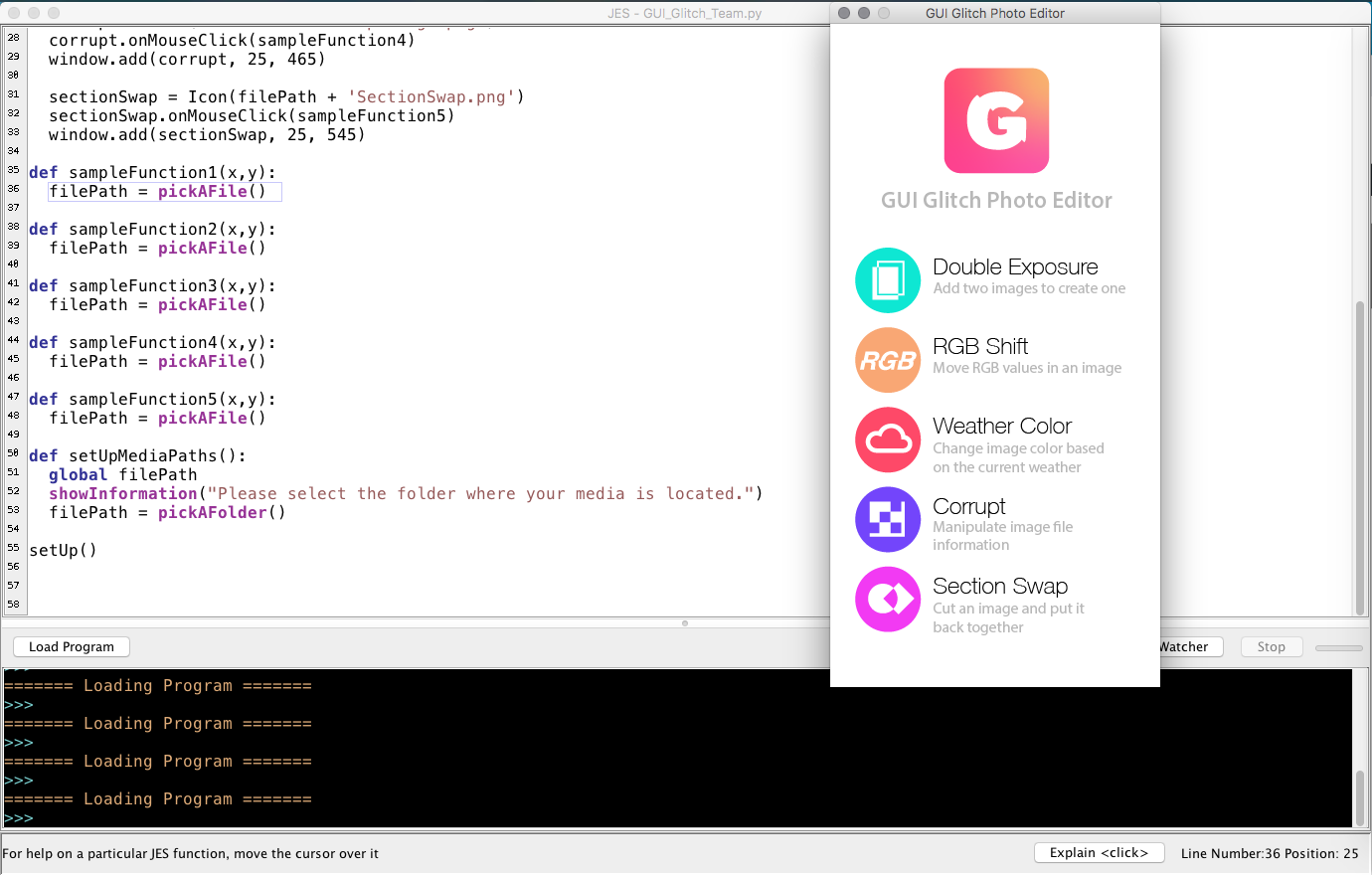
#GUI GLITCH TEAM, December 2018
#Danny Anderson, Molli Nava, Katie Dawe, Evan Gustafson

import gui
from gui import *

filePath = None

def setUp():
  global filePath
  setUpMediaPaths()
  window = Display("GUI Glitch Photo Editor", 332, 667)
  window.add(Icon(filePath + 'GlitchLogoBG.png'), 0, 0)

  exposure = Icon(filePath + 'DoubleExposure.png')
  exposure.onMouseClick(sampleFunction1)
  window.add(exposure, 25, 225)

  rgbShift = Icon(filePath + 'rgbShift.png')
  rgbShift.onMouseClick(sampleFunction2)
  window.add(rgbShift, 25, 305)

  weatherColor = Icon(filePath + 'WeatherColor.png')
  weatherColor.onMouseClick(sampleFunction3)
  window.add(weatherColor, 25, 385)

  corrupt = Icon(filePath + 'CorruptImage.png')
  corrupt.onMouseClick(sampleFunction4)
  window.add(corrupt, 25, 465)

  sectionSwap = Icon(filePath + 'SectionSwap.png')
  sectionSwap.onMouseClick(sampleFunction5)
  window.add(sectionSwap, 25, 545)

def sampleFunction1(x,y):
  filePath = pickAFile()

def sampleFunction2(x,y):
  filePath = pickAFile()

def sampleFunction3(x,y):
  filePath = pickAFile()

def sampleFunction4(x,y):
  filePath = pickAFile()

def sampleFunction5(x,y):
  filePath = pickAFile()

def setUpMediaPaths():
  global filePath
  showInformation("Please select the folder where your media is located.")
  filePath = pickAFolder()

setUp()Evan 12/7 UI Update
Our GUI is looking good, the background is up and running. I got some help in lab and found that I hadn’t added the proper global variables. I also needed to re-write the proper file path. So now the next step is to add the buttons of the varying filters.
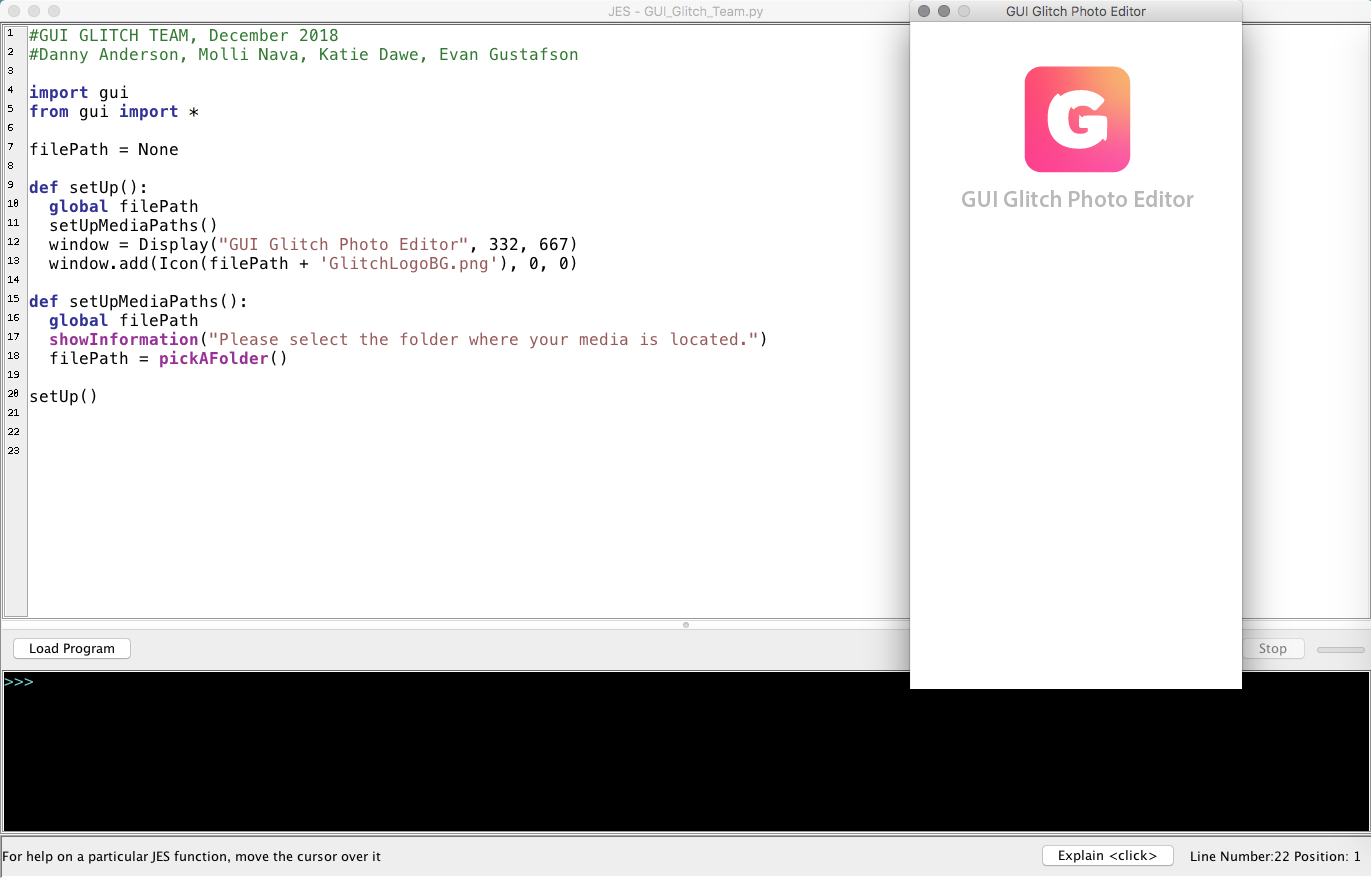
#GUI GLITCH TEAM, December 2018
#Danny Anderson, Molli Nava, Katie Dawe, Evan Gustafson

import gui
from gui import *

filePath = None

def setUp():
  global filePath
  setUpMediaPaths()
  window = Display("GUI Glitch Photo Editor", 332, 667)
  window.add(Icon(filePath + 'GlitchLogoBG.png'), 0, 0)

def setUpMediaPaths():
  global filePath
  showInformation("Please select the folder where your media is located.")
  filePath = pickAFolder()

setUp()Double Exposure Filter and RGB Edits
During our group meeting on Wednesday, December 5th, I worked on coding the double exposure filter. I worked from the example in the textbook (on page 185), where two pictures are overlapped. Unfortunately, this filter only works if the two pictures uploaded are the exact same pixel length on each side. If we have time, I would like to modify this so that it would work if the pictures are not the exact same size (but still the same aspect ratio).
Double exposure code below:
# Double Exposure
# In order for this to work, the two pictures uploaded must be EXACTLY the same size
# I mean, same aspect ratio AND same pixel length on each side
# Stretch goal: make this code work if the pictures are not exactly the same size

def doubleExposure():
  choose1 = pickAFile()
  choose2 = pickAFile()
  pic1 = makePicture(choose1)
  pic2 = makePicture(choose2)
  canvas = makeEmptyPicture(getWidth(pic1), getHeight(pic1))
  #copy columns
  overlap = getWidth(pic1)
  sourceX = 0
  for targetX in range(0,getWidth(pic1)):
    sourceY = 0
    for targetY in range(0,getHeight(pic2)):
      pic1Pixel = getPixel(pic1,sourceX,sourceY)
      pic2Pixel = getPixel(pic2, sourceX, sourceY)
      newRed = 0.50*getRed(pic1Pixel)+0.50*getRed(pic2Pixel)
      newGreen = 0.50*getGreen(pic1Pixel)+0.50*getGreen(pic2Pixel)
      newBlue = 0.50*getBlue(pic1Pixel)+0.50*getBlue(pic2Pixel)
      color = makeColor(newRed,newGreen,newBlue)
      setColor(getPixel(canvas,targetX,targetY),color)
      sourceY = sourceY + 1
    sourceX = sourceX + 1
  show(canvas)
  return(canvas)


doubleExposure()
I also worked on the randomizing the shifts in the RGB shift filter, and started working on the weather filter to make it overlay different .pngs of snow, fog, sun, and rain on top of an uploaded picture depending on the current weather conditions.
While working on randomizing the RGB Shift filter, I accidentally created another filter which we are going to use in place of the original proposal to delete file information. This is because it looks like it has corrupted the picture anyway. Example below: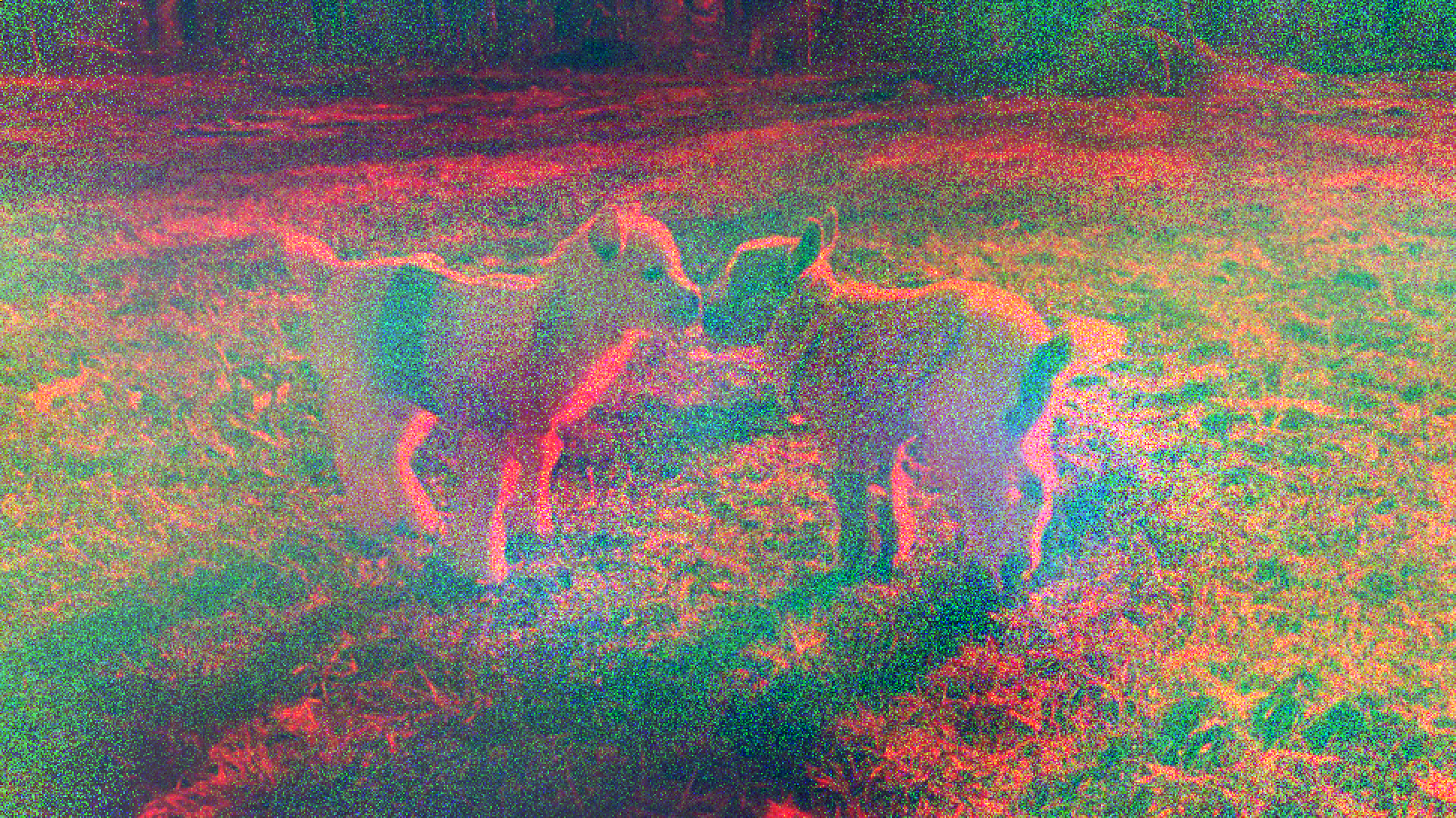
Weather API and Mirror Filter
I worked on taking the API information from Yahoo Weather that Molli started working on and implemented a way to alter the color temperature of an image based on the outside temperature in Boulder.
import urllib
import simplejson as json
import gui

from gui import *


#API WEATHER GLITCH
#Description: This is the starting point for creating our API weather-based glitch.
#It currently uses a yahoo url to grab the current temperature and prints out that value, which we can then use to alter our photographs.
url = "https://query.yahooapis.com/v1/public/yql?q=select%20*%20from%20weather.forecast%20where%20woeid%20in%20(select%20woeid%20from%20geo.places(1)%20where%20text%3D%22boulder%2C%20co%22)&format=json&env=store%3A%2F%2Fdatatables.org%2Falltableswithkeys"
response = urllib.urlopen(url)
data = json.loads(response.read())
print data['query']['results']['channel']['item']['condition']['temp']
print data['query']['results']['channel']['item']['condition']['text']

temperature = data['query']['results']['channel']['item']['condition']['temp']
print int(temperature)
condition = data['query']['results']['channel']['item']['condition']['text']
#print int(condition)

def tempShift():
  temperature = data['query']['results']['channel']['item']['condition']['temp']
  condition = data['query']['results']['channel']['item']['condition']['text']

  picture = makePicture(pickAFile())

  if temperature > 50:
    for p in getPixels(picture):
      setRed(p,getRed(p)/1.2)
      setGreen(p,getGreen(p)/1.2)
      setBlue(p,getBlue(p)*1.5)

  elif temperature < 50:
    for p in getPixels(picture):
      setRed(p,getRed(p)*1.2)
      setGreen(p,getGreen(p)*1.2)
      setBlue(p,getBlue(p)/1.5)

  #if condition == 'Cloudy':
   # picture.add(cloudImg)

  #elif condition == 'Snow':
   # picture.add(snow.png)


  explore(picture)


def setUpMediaPaths():
  global filePath
  showInformation("Choose the folder where your media files are")
  filePath = pickAFolder()

global cloudImg
def loadClouds():
  global cloudImg
  cloudImg = Icon(filePath + '/clouds.png')


setUpMediaPaths()
tempShift()
I also worked on creating the “Section Swap” filter. Currently, this program mirrors the top half of the image into the bottom half. The code is below.
#this function cuts the image horizontally in half and mirrors the top half into the bottom half of the image.


picture = makePicture(pickAFile())

def mirrorUpHalf():

  pixels=getPixels(picture)
  target=len(pixels)-1
  for index in range(0,len(pixels)/2):
    pixel1=pixels[index]
    color1=getColor(pixel1)
    pixel2=pixels[target]
    setColor(pixel2,color1)
    target=target-1

mirrorUpHalf()

explore(picture)