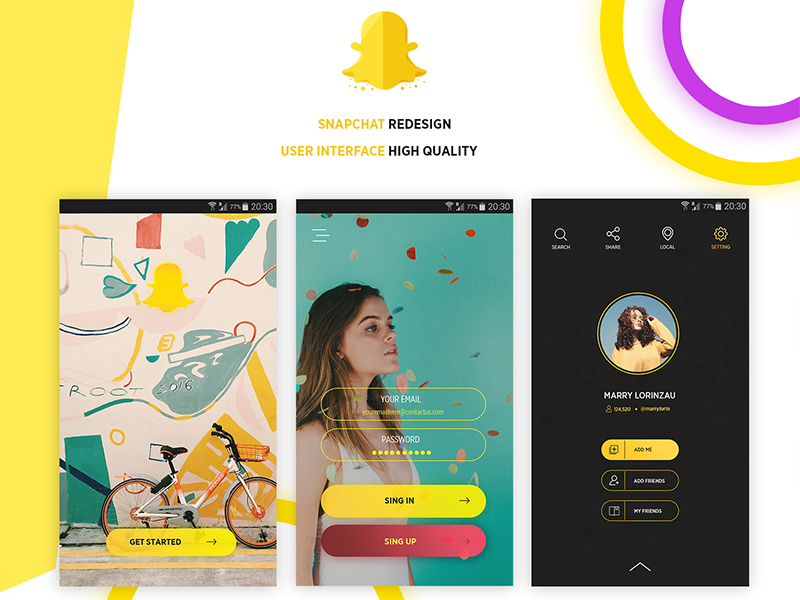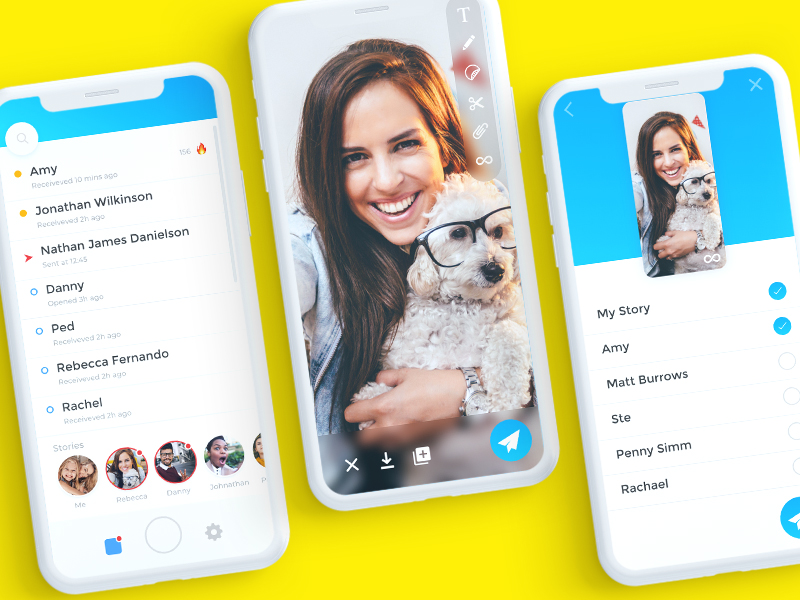
I am so stinking proud of our final product. For the first time, I actually felt comfortable coding. Also, It was helpful to write code for something that I could really connect to, like our mobile app UI. During this product, I learned how to include graphics and use them as buttons in our code. This gave us more flexibility in terms of how we designed our product. My initial code was a nightmare that didn’t actually work, but with the help of our TAs, I was able to make a working GUI and connect all of our filters into one screen. This does a great job of showing what I learned because in the end my work actually could run correctly. I think I still feel unconfident in anticipating code and knowing where to start. Almost like code writer’s block. Overall this project was a major success. I will most likely use our work in my design portfolio and website.
Author: evangustafson
Evan 12/7 Assembled UI + Code
Here is our code with all the filters added to complete GUI.
#GUI GLITCH TEAM, December 2018
#Danny Anderson, Molli Nava, Katie Dawe, Evan Gustafson

import gui
from gui import *

#For RGB Shift
import random

#For Weather API
import urllib
import simplejson as json

#Picture
picture = None

filePath = None


#
#
#
#
def setUp():
  global filePath
  setUpMediaPaths()
  window = Display("GUI Glitch Photo Editor", 332, 667)
  window.add(Icon(filePath + 'GlitchLogoBG.png'), 0, 0)

  exposure = Icon(filePath + 'DoubleExposure.png')
  exposure.onMouseClick(exposureFunction)
  window.add(exposure, 25, 225)

  rgbShift = Icon(filePath + 'rgbShift.png')
  rgbShift.onMouseClick(rgbShiftFunction)
  window.add(rgbShift, 25, 305)

  weatherColor = Icon(filePath + 'WeatherColor.png')
  weatherColor.onMouseClick(weatherFunction)
  window.add(weatherColor, 25, 385)

  corrupt = Icon(filePath + 'CorruptImage.png')
  corrupt.onMouseClick(corruptFunction)
  window.add(corrupt, 25, 465)

  sectionSwap = Icon(filePath + 'SectionSwap.png')
  sectionSwap.onMouseClick(swapFunction)
  window.add(sectionSwap, 25, 545)


#
#
#
#
def exposureFunction(x,y):

  # Double Exposure
  # In order for this to work, the two pictures uploaded must be EXACTLY the same size
  # I mean, same aspect ratio AND same pixel length on each side
  # Stretch goal: make this code work if the pictures are not exactly the same size

  def doubleExposure():
    choose1 = pickAFile()
    choose2 = pickAFile()
    pic1 = makePicture(choose1)
    pic2 = makePicture(choose2)
    canvas = makeEmptyPicture(getWidth(pic1), getHeight(pic1))
    #copy columns
    overlap = getWidth(pic1)
    sourceX = 0
    for targetX in range(0,getWidth(pic1)):
      sourceY = 0
      for targetY in range(0,getHeight(pic2)):
        pic1Pixel = getPixel(pic1,sourceX,sourceY)
        pic2Pixel = getPixel(pic2, sourceX, sourceY)
        newRed = 0.50*getRed(pic1Pixel)+0.50*getRed(pic2Pixel)
        newGreen = 0.50*getGreen(pic1Pixel)+0.50*getGreen(pic2Pixel)
        newBlue = 0.50*getBlue(pic1Pixel)+0.50*getBlue(pic2Pixel)
        color = makeColor(newRed,newGreen,newBlue)
        setColor(getPixel(canvas,targetX,targetY),color)
        sourceY = sourceY + 1
      sourceX = sourceX + 1
    show(canvas)
    return(canvas)


  doubleExposure()


#
#
#
#
def rgbShiftFunction(x,y):
  filePath = pickAFile()
  picture = makePicture(filePath)

  width = picture.getWidth()
  height = picture.getHeight()
  redImg = []
  blueImg = []
  greenImg = []

  #Description: This code take an image and shifts the RGB channels in different directions.
  # Leave Red in place
    # Shift Blue up/left
  # Shift Green down/right
  for x in range(width):
    redImg.append([])
    blueImg.append([])
    greenImg.append([])
    for y in range(height):
      redImg[x].append([])
      blueImg[x].append([])
      greenImg[x].append([])

  for x in range(width):
    for y in range(height):
      pixel = getPixel(picture, x, y)

      redImg[x][y] = getRed(pixel)
      greenImg[x][y] = getGreen(pixel)
      blueImg[x][y] = getBlue(pixel)

  xShift1 = random.randint(0,100)
  yShift1 = random.randint(0,100)
  xShift2 = random.randint(0,100)
  yShift2 = random.randint(0,100)

  for x in range(width):
    for y in range(height):
      rPixel = redImg[x][y]
      bPixel = blueImg[x-xShift1][y-yShift1]
      gPixel = greenImg[x - xShift2][y - yShift2]

      newR = rPixel
      newG = gPixel
      newB = bPixel
      color = makeColor(newR, newG, newB)
      setColor(getPixel(picture, x, y), color)

  show(picture)


#
#
#
#
def weatherFunction(x,y):
  filePath = pickAFile()
  #API WEATHER GLITCH
  #Description: This is the starting point for creating our API weather-based glitch.
  #It currently uses a yahoo url to grab the current temperature and prints out that value, which we can then use to alter our photographs.
  url = "https://query.yahooapis.com/v1/public/yql?q=select%20*%20from%20weather.forecast%20where%20woeid%20in%20(select%20woeid%20from%20geo.places(1)%20where%20text%3D%22boulder%2C%20co%22)&format=json&env=store%3A%2F%2Fdatatables.org%2Falltableswithkeys"
  response = urllib.urlopen(url)
  data = json.loads(response.read())
  print data['query']['results']['channel']['item']['condition']['temp']


  temperature = data['query']['results']['channel']['item']['condition']['temp']
  print int(temperature)


  def tempShift():
    temperature = int(data['query']['results']['channel']['item']['condition']['temp'])
    condition = data['query']['results']['channel']['item']['condition']['text']

    picture = makePicture(filePath)

    if temperature < 10:
      for p in getPixels(picture):
        red = getRed(p)
        green = getGreen(p)
        blue = getBlue(p)
        negColor = makeColor(255-red, 255-green, 255-blue)
        setColor(p, negColor)

        setRed(p,getRed(p)*1.2)
        setGreen(p,getGreen(p)/1.2)
        setBlue(p,getBlue(p)*9)

    elif temperature in range (11,20):
      for p in getPixels(picture):
        red = getRed(p)
        green = getGreen(p)
        blue = getBlue(p)
        negColor = makeColor(255-red, 255-green, 255-blue)
        setColor(p, negColor)

        setRed(p,getRed(p)*1.3)
        setGreen(p,getGreen(p)*1.2)
        setBlue(p,getBlue(p)*6)

    elif temperature in range (21,30):
      for p in getPixels(picture):
        red = getRed(p)
        green = getGreen(p)
        blue = getBlue(p)
        negColor = makeColor(255-red, 255-green, 255-blue)
        setColor(p, negColor)

        setRed(p,getRed(p)*1)
        setGreen(p,getGreen(p)*1.2)
        setBlue(p,getBlue(p)*4)

    elif temperature > 30:
      for p in getPixels(picture):
        red = getRed(p)
        green = getGreen(p)
        blue = getBlue(p)
        negColor = makeColor(255-red, 255-green, 255-blue)
        setColor(p, negColor)

        setRed(p,getRed(p)*4)
        setGreen(p,getGreen(p)*1.3)
        setBlue(p,getBlue(p)*1)
    show(picture)
  tempShift()


#
#
#
#
def corruptFunction(x,y):
  #Picture
  picture = makePicture(pickAFile())
  width = picture.getWidth()
  height = picture.getHeight()
  redImg = []
  blueImg = []
  greenImg = []

  #Description: This code take an image and shifts the RGB channels in different directions.
  # Leave Red in place
  # Shift Blue up/left
  # Shift Green down/right
  for x in range(width):
    redImg.append([])
    blueImg.append([])
    greenImg.append([])
    for y in range(height):
      redImg[x].append([])
      blueImg[x].append([])
      greenImg[x].append([])

  for x in range(width):
    for y in range(height):
      pixel = getPixel(picture, x, y)

      redImg[x][y] = getRed(pixel)
      greenImg[x][y] = getGreen(pixel)
      blueImg[x][y] = getBlue(pixel)


  for x in range(width):
    for y in range(height):
      xShift1 = random.randint(1,100)
      yShift1 = random.randint(1,100)
      xShift2 = random.randint(1,100)
      yShift2 = random.randint(1,100)
      rPixel = redImg[x][y]
      bPixel = blueImg[x - xShift1][y - yShift1]
      gPixel = greenImg[x - xShift2][y - yShift2]

      newR = rPixel
      newG = gPixel
      newB = bPixel
      color = makeColor(newR, newG, newB)
      setColor(getPixel(picture, x, y), color)


  explore(picture)


#
#
#
#
def swapFunction(x,y):
  picture = makePicture(pickAFile())

  def mirrorUpHalf():
    pixels=getPixels(picture)
    target = (len(pixels)/4) - 1
    for index in range(0,len(pixels)/2):
      pixel1=pixels[index]
      color1=getColor(pixel1)
      pixel2=pixels[target]
      setColor(pixel2,color1)
      target=target-1

  mirrorUpHalf()
  show(picture)


#
#
#
#
def setUpMediaPaths():
  global filePath
  showInformation("Please select the folder where your media is located.")
  filePath = pickAFolder()

setUp()Evan 12/7 UI Update
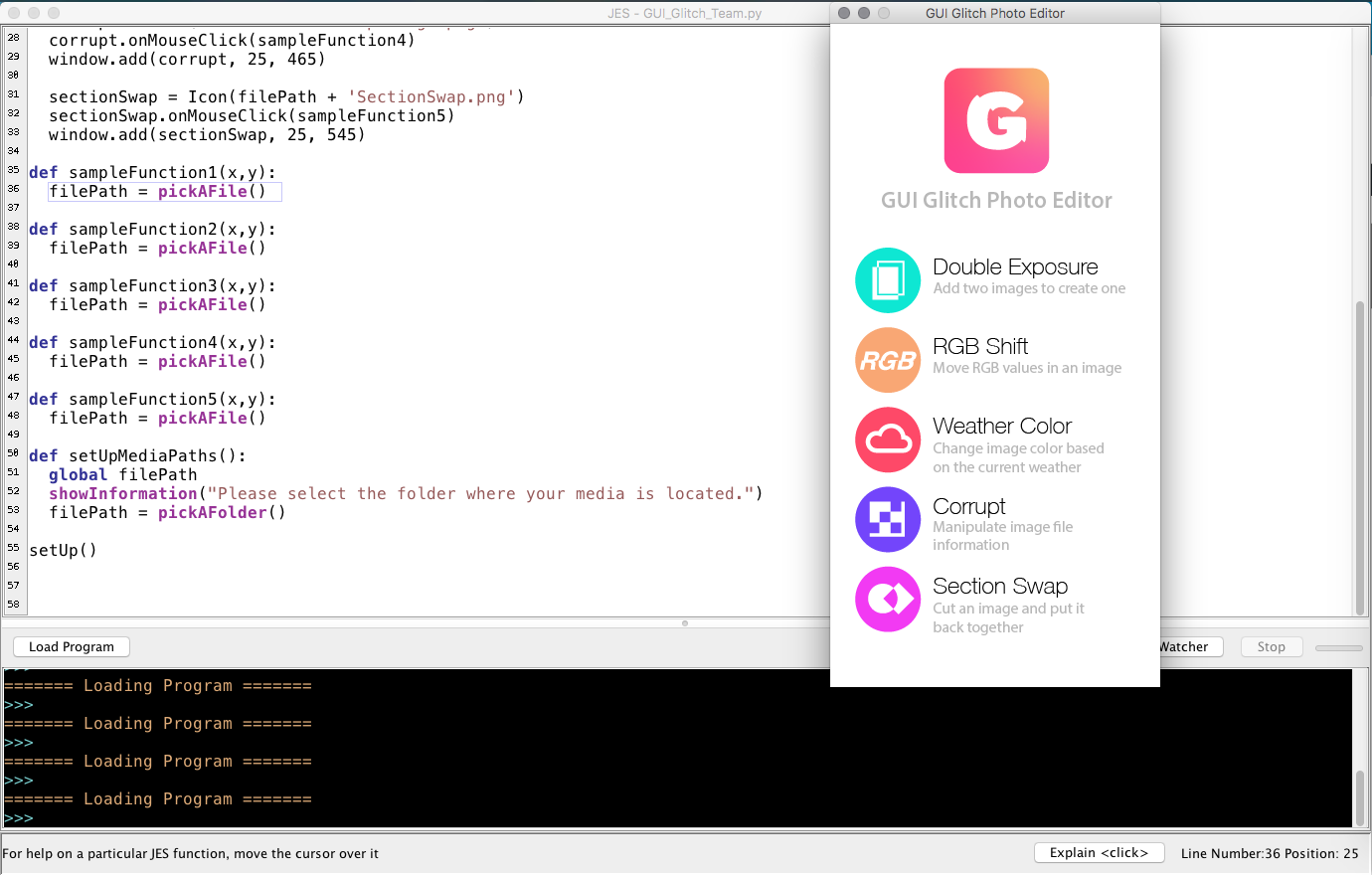
The GUI UI is visually complete, the links are working and now we need to add the complete filter codes. right now you can click an option and select the photo you want to edit.
#GUI GLITCH TEAM, December 2018
#Danny Anderson, Molli Nava, Katie Dawe, Evan Gustafson

import gui
from gui import *

filePath = None

def setUp():
  global filePath
  setUpMediaPaths()
  window = Display("GUI Glitch Photo Editor", 332, 667)
  window.add(Icon(filePath + 'GlitchLogoBG.png'), 0, 0)

  exposure = Icon(filePath + 'DoubleExposure.png')
  exposure.onMouseClick(sampleFunction1)
  window.add(exposure, 25, 225)

  rgbShift = Icon(filePath + 'rgbShift.png')
  rgbShift.onMouseClick(sampleFunction2)
  window.add(rgbShift, 25, 305)

  weatherColor = Icon(filePath + 'WeatherColor.png')
  weatherColor.onMouseClick(sampleFunction3)
  window.add(weatherColor, 25, 385)

  corrupt = Icon(filePath + 'CorruptImage.png')
  corrupt.onMouseClick(sampleFunction4)
  window.add(corrupt, 25, 465)

  sectionSwap = Icon(filePath + 'SectionSwap.png')
  sectionSwap.onMouseClick(sampleFunction5)
  window.add(sectionSwap, 25, 545)

def sampleFunction1(x,y):
  filePath = pickAFile()

def sampleFunction2(x,y):
  filePath = pickAFile()

def sampleFunction3(x,y):
  filePath = pickAFile()

def sampleFunction4(x,y):
  filePath = pickAFile()

def sampleFunction5(x,y):
  filePath = pickAFile()

def setUpMediaPaths():
  global filePath
  showInformation("Please select the folder where your media is located.")
  filePath = pickAFolder()

setUp()Evan 12/7 UI Update
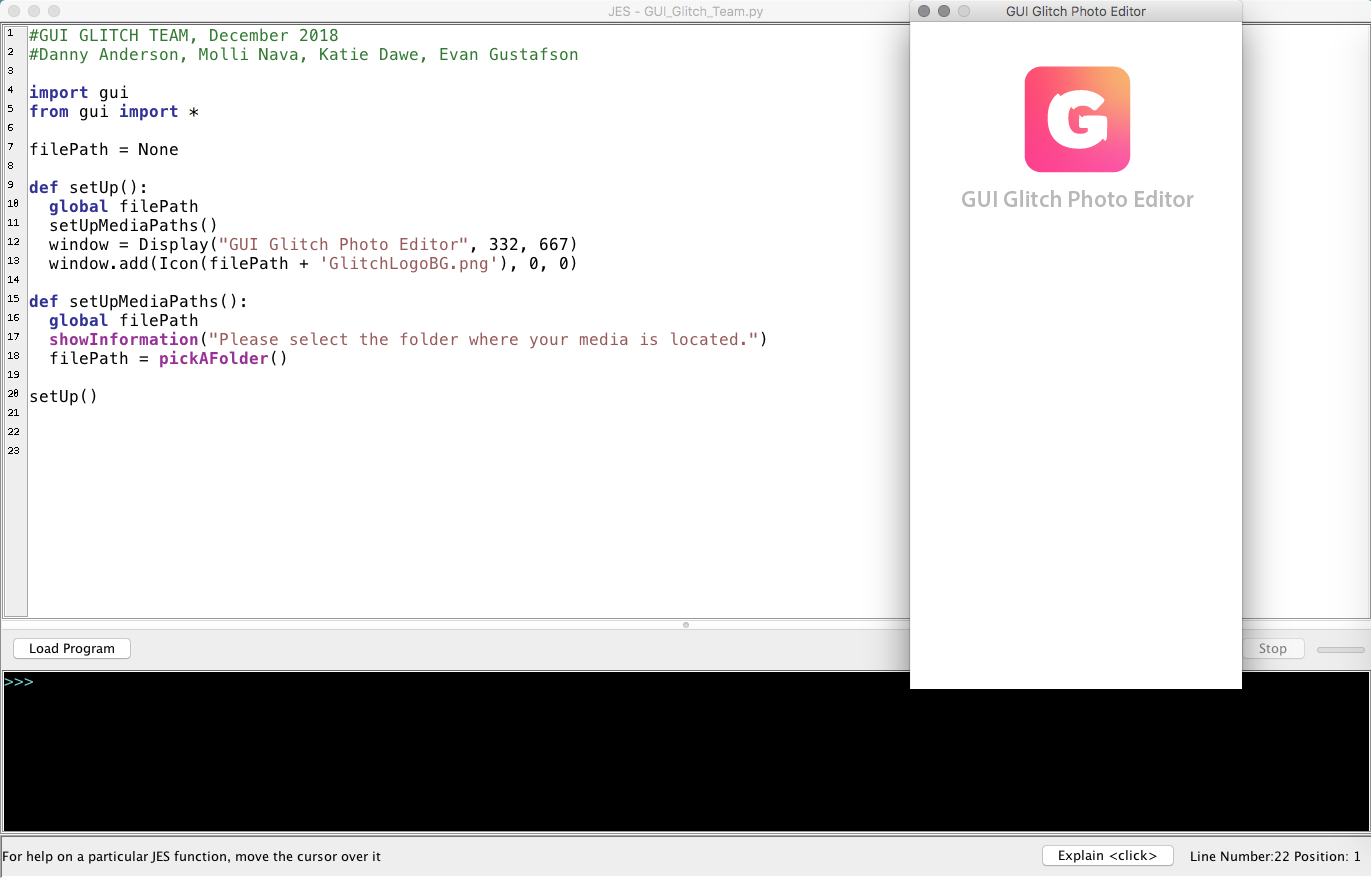
Our GUI is looking good, the background is up and running. I got some help in lab and found that I hadn’t added the proper global variables. I also needed to re-write the proper file path. So now the next step is to add the buttons of the varying filters.
#GUI GLITCH TEAM, December 2018
#Danny Anderson, Molli Nava, Katie Dawe, Evan Gustafson

import gui
from gui import *

filePath = None

def setUp():
  global filePath
  setUpMediaPaths()
  window = Display("GUI Glitch Photo Editor", 332, 667)
  window.add(Icon(filePath + 'GlitchLogoBG.png'), 0, 0)

def setUpMediaPaths():
  global filePath
  showInformation("Please select the folder where your media is located.")
  filePath = pickAFolder()

setUp()Evan 12/5 UI Update
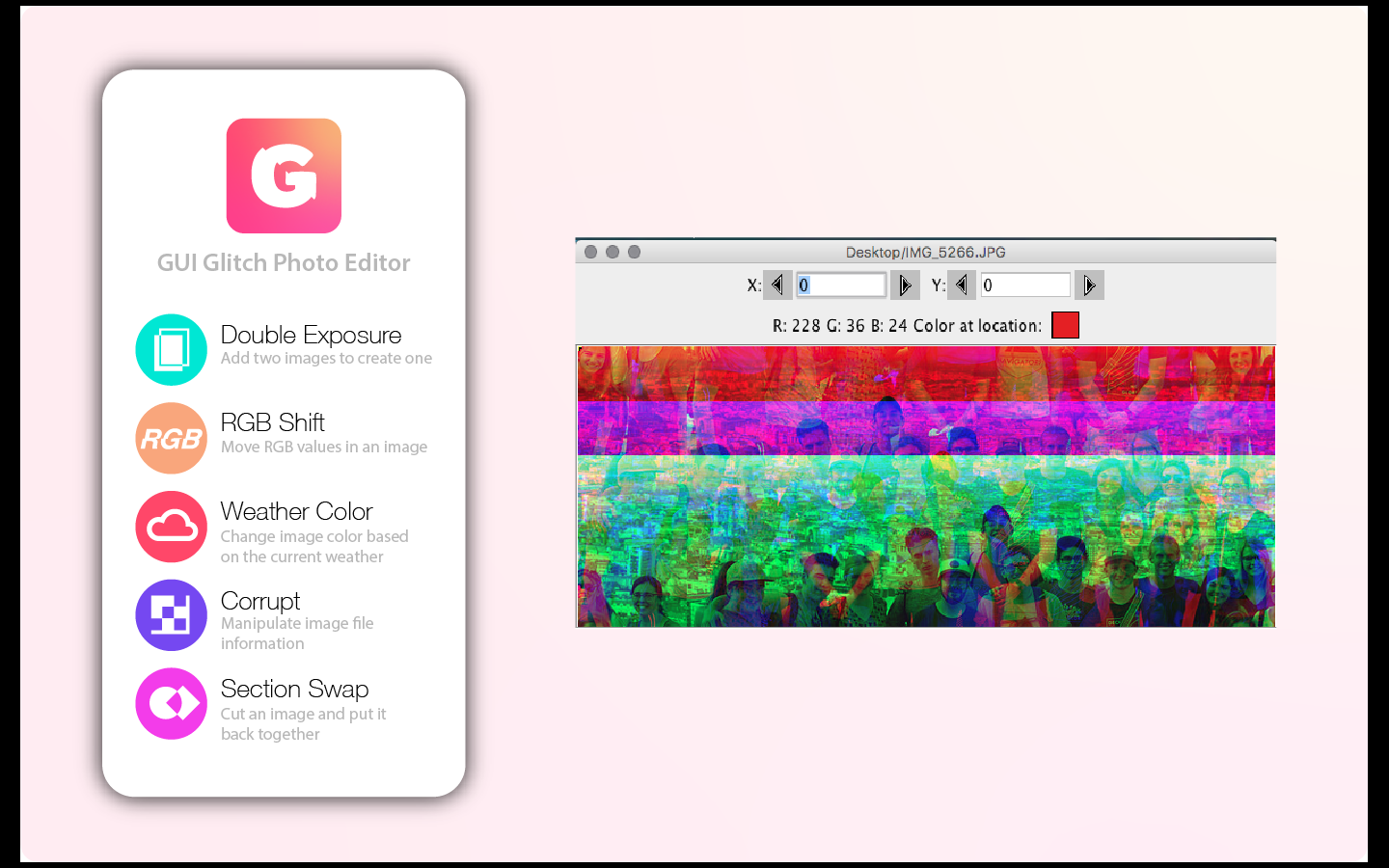
Today I built the project UI, I did this primarily in Adobe Illustrator. I had a vision for what I assumed our interface would look like. I had wireframed a design concept already. However, it was good that we were all working together on this because our team had other (really better) ideas than me. We decided to design only the GUI window because that’s all we had control over. Below is what our UI will look like after we are done. This took many iterations, and we even made a logo for our project.
#GUI GLITCH TEAM, December 2018
#Danny Anderson, Molli Nava, Katie Dawe, Evan Gustafson

import gui
from gui import *


def setUp():
  window = Display("GUI Glitch Photo Editor", 375, 667)


def showAnswer(x, y):
  global guiWindow, screenState, filePath
  guiWindow.removeAll()
  if screenState == 1:
    guiWindow.add(Icon(filePath + 'GlitchLogoBG.png'), 0, 0)

def setUpMediaPaths():
  global filePath
  showInformation("Choose the folder where your media files are")
  filePath = pickAFolder()

setUp()
This is my code I continued on, the GUI is taking a bit more time to get the correct background in place like the above UI.
Gustafson W14 Lab
I updated our blog to include a page for everyone.
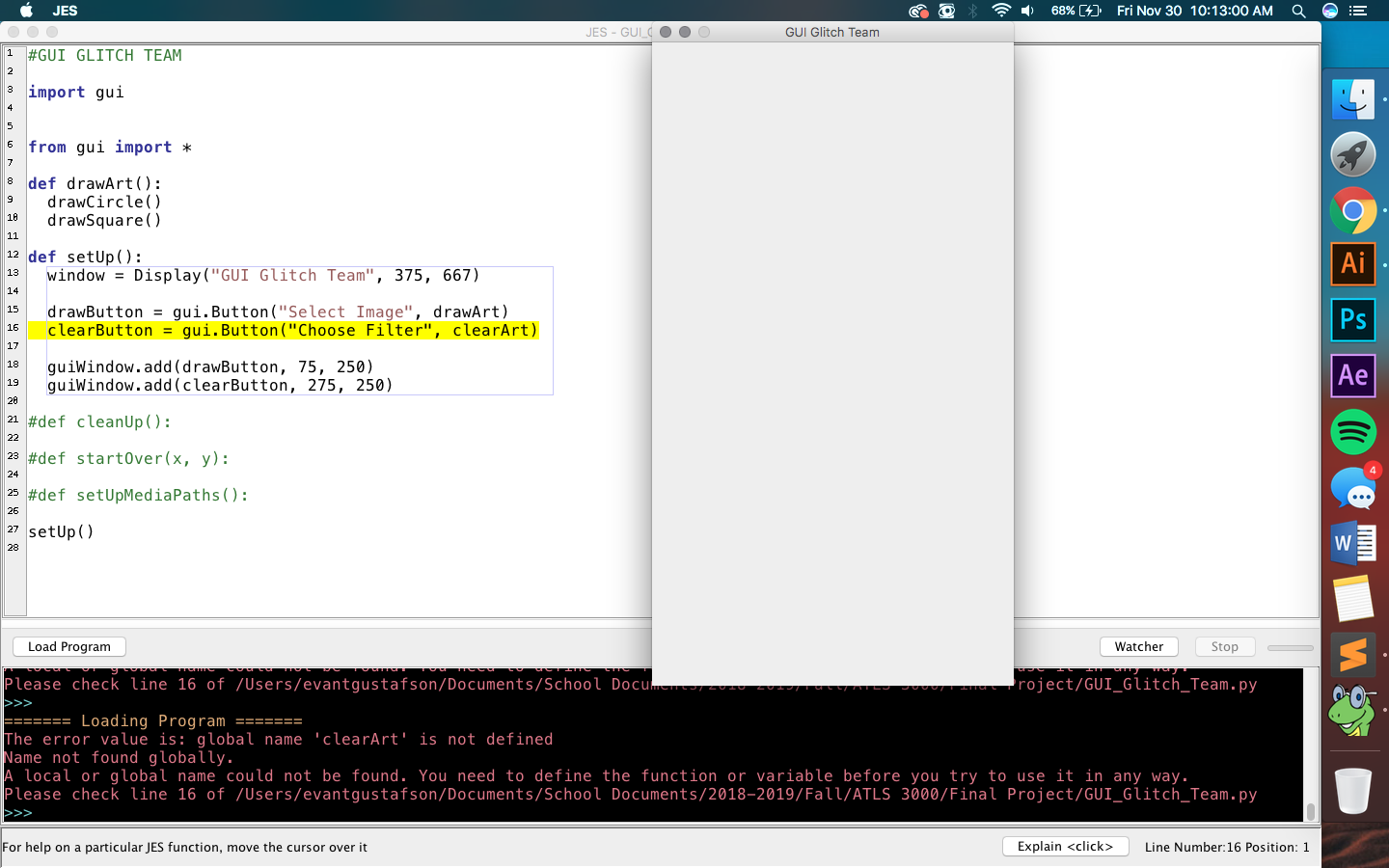
Today I also began our code and prepared our GUI in JES. I also added it to our repository. This is just the beginning set up, so it isn’t totally functional yet. Right now our code displays a GUI that is the shape of an iPhone, this could change going forward but for now, it will do. I used code from our past labs to build the GUI display. I had some trouble adding buttons to the window so I’m going to get some help on that today.
Gustafson W14H2
Since Monday, I have been looking into how to create a visually appealing snap filter UI. I want our project to look professional and be user friendly. I have been looking into how to work with the GUI to make it look designed with a clean vibrant style. While I already expect this to be a challenge, I think it will be very worth it. I have been going through design websites finding material to work with.